How to Set Up TvMate Pro on Windows PC
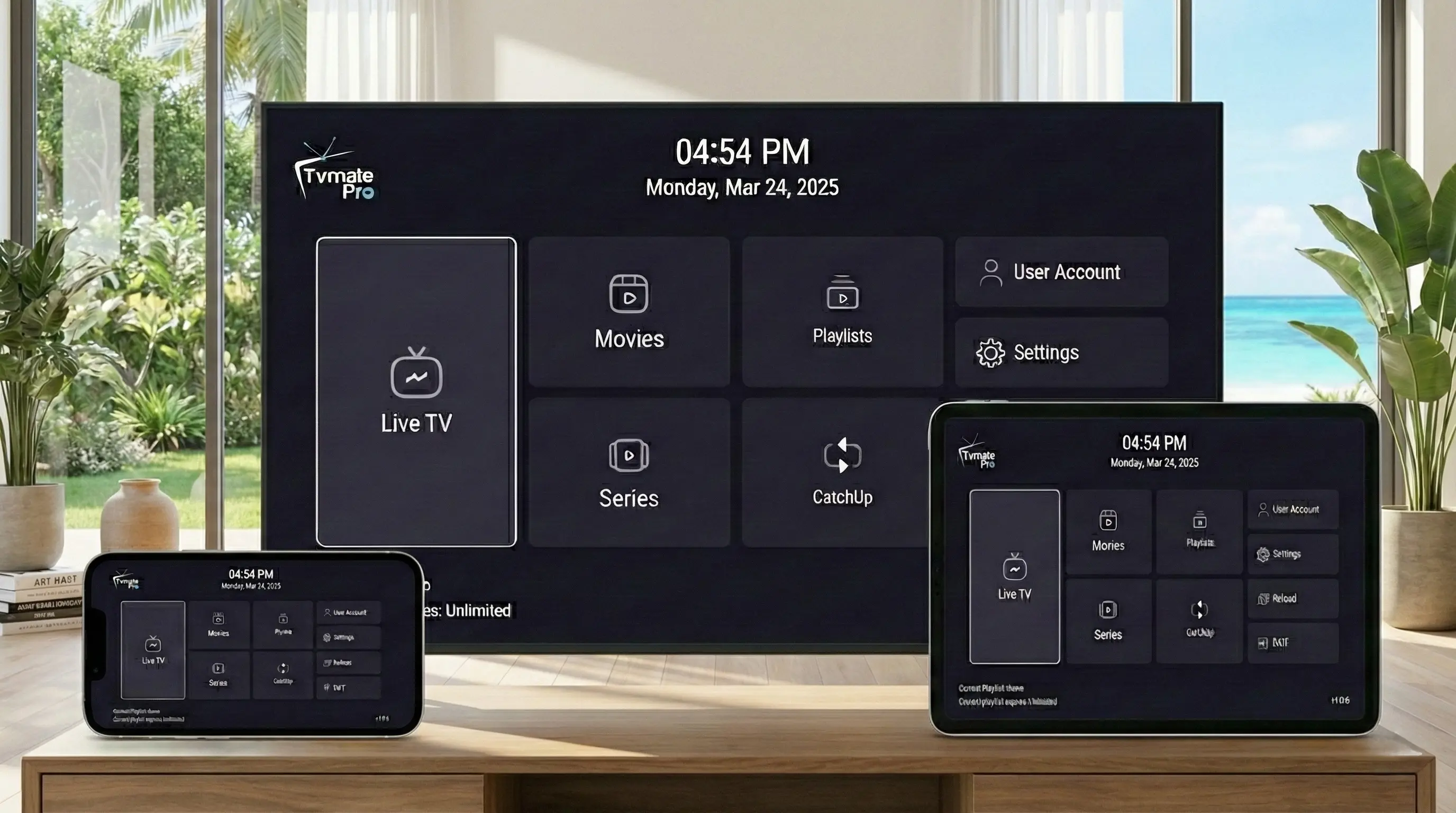
Watching TV on a computer offers incredible flexibility. Whether you have a multi-monitor setup for sports or just want to watch movies on your laptop in bed, TvMate Pro for Windows delivers a seamless experience.
We provide two simple ways to install the app on your PC, ensuring compatibility with virtually every version of Windows.
Start Here: App vs Service
Critical Info: TvMate Pro is a media player. It does not provide channels on its own.
To access live TV and VoD content, you must have an active Premium IPTV Subscription from our website.
Requirements
- Windows 10 or Windows 11 (Recommended).
- Stable internet connection (Ethernet preferred).
- TvMate Subscription Credentials.
Method 1: Microsoft Store (Best for Win 10/11)
The easiest way to install TvMate Pro is through the official Microsoft Store. This ensures you get automatic updates.
- Open the Start Menu and type "Microsoft Store".
- In the store search bar, type "TvMate Pro".
- Click on the app icon.
- Click the Get or Install button.
- Once installed, launch it from your Start Menu.
Method 2: Exe Installer
If you prefer a direct download or are on an older version of Windows, use our standalone installer.
- Download the Installer (Click Here).
- Locate the
setup.exefile in your Downloads folder. - Double-click to run the installer.
- Follow the on-screen prompts (Next > Install > Finish).
- The app will launch automatically.
How to Connect Service
Now you have the player, let's get you streaming.
- Open the TvMate Pro app on your PC.
- Select "Add Operator" or "Add Playlist".
- Choose "Xtream Codes API" login method (Most stable).
- Input your credentials:
- Server Address (URL): Found in your signup email.
- Username: Found in your signup email.
- Password: Found in your signup email.
- Click Connect to load your channels.
Why Use Windows?
Multi-Window Support
Resize the player window to keep watching while you browse the web or work in other apps.
High Performance
PCs typically have much faster processors than TV sticks, meaning zero lag in menus and instant channel switching.
Troubleshooting
Firewall Blocking
If channels won't load, Windows Firewall might be blocking the connection. Allow the app through your firewall in Control Panel settings.
Black Screen
Update your graphics card drivers (NVIDIA/AMD/Intel). Video decoding relies heavily on up-to-date GPU drivers.
FAQ
Can I record shows on my PC?
Yes! PCs usually have plenty of hard drive space, making them perfect for recording hours of content to watch later.
Does it support keyboard shortcuts?
Yes, you can use arrow keys to navigate, spacebar to pause, and Enter to select, making navigation incredibly fast.
Conclusion
TvMate Pro on Windows transforms your PC into a high-end media center. With powerful hardware and our optimized software, you get one of the best viewing experiences possible.
Upgrade Your PC Setup
Grab a subscription and experience high-definition TV on your desktop monitor.