How to Set Up TvMate Pro on Samsung Smart TV
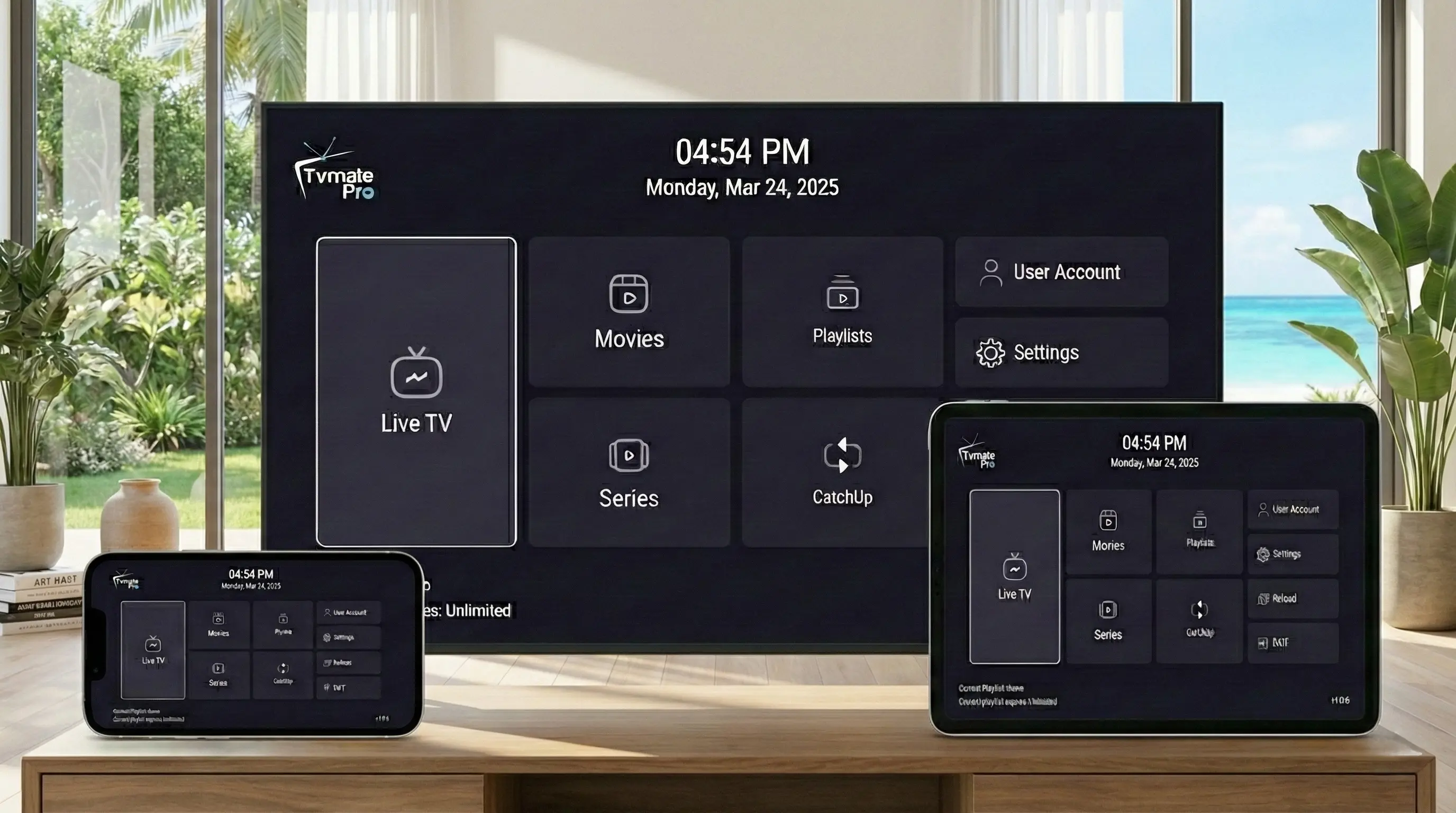
Samsung Smart TVs are known for their stunning vibrant displays, and with TvMate Pro, you can unlock their full potential. Running on Tizen OS, Samsung requires a slightly different installation method than Android devices.
This guide will show you exactly how to get TvMate Pro up and running on your Samsung TV in minutes.
Start Here: App vs Service
Critical Info: The TvMate Pro app is a media player. It does not come with channels pre-loaded.
To watch live TV, movies, and series, you need to connect it to our Premium IPTV Subscription.
Requirements
- A Samsung Smart TV (2016 model or newer running Tizen OS).
- Stable internet connection (Ethernet recommended for 4K).
- Samsung Account signed in on the TV.
- IPTV Subscription Details (from our website).
Installation Guide
Samsung uses its own App Store rather than Google Play.
- Press the Home button on your Samsung remote.
- Navigate left to the Apps menu.
- Select the Search icon (magnifying glass) at the top right.
- Type "TvMate" or "IPTV Smarters" (TvMate is fully compatible with Smarters-style players if the native app is in maintenance).
- Locate the app in the search results and select it.
- Click Install.
- Once finished, click Add to Home for easy access.
Alternative Method (Recommended)
Sometimes, Samsung's native apps can be slower to update than their Android counterparts. For the absolute best performance, we recommend using a cheap streaming stick.
Why use a Firestick on Samsung?
- Faster performance and smoother menus.
- Full Android version of TvMate Pro (more features).
- Portable/Transferable settings.
If you have a Firestick connected to your Samsung TV, check out our Firestick Setup Guide.
How to Connect Service
Once the player is installed, follow these steps to activate your content.
- Launch the app on your Samsung TV.
- Select Add Playlist or Login with Xtream Codes.
- Enter your subscription details:
- Name: TvMate (or anything you like)
- Username: (from your order email)
- Password: (from your order email)
- URL: (from your order email)
- Click Add User and enjoy!
Troubleshooting
App not found in Store
Samsung app availability varies by region. If you cannot find it, change your TV region settings or, ideally, use a Firestick to bypass these restrictions.
Buffering on WiFi
Samsung WiFi cards can be weak. If you experience lag, try connecting an Ethernet cable directly to the TV.
FAQ
Does TvMate Pro support Samsung 4K Upscaling?
Yes, the app outputs a high-quality signal that your Samsung TV processor can easily upscale to look crisp and vibrant.
Is the Samsung app updated often?
We push updates as fast as Samsung's approval process allows. For the absolute latest bleeding-edge features, the Android/Firestick version is usually 1-2 weeks ahead.
Conclusion
Your Samsung Smart TV is a powerful entertainment hub. By installing TvMate Pro and activating a premium subscription, you unlock thousands of channels without the clutter of cable boxes.
Start Watching Now
Get instant access to the best content on your Samsung TV.