How to Set Up TvMate Pro on LG Smart TV
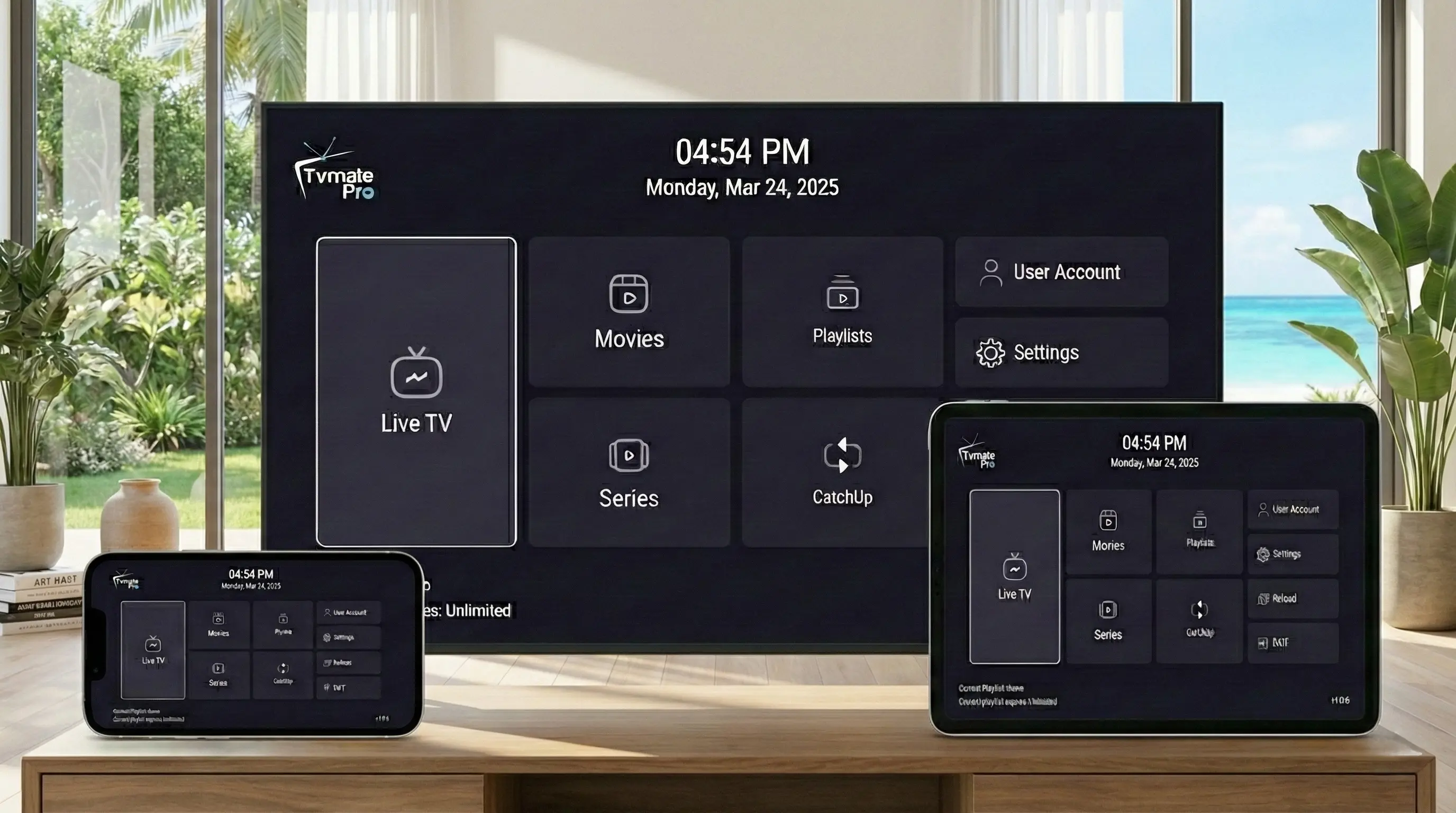
LG Smart TVs running WebOS are fantastic for streaming, thanks to their intuitive "Magic Remote" and crisp OLED displays.
While LG uses a different system than Android, installing TvMate Pro is still straightforward through the LG Content Store. This guide will help you unlock live TV on your LG device.
Start Here: App vs Service
Critical Info: The TvMate Pro app is a media player. It does not come with channels pre-loaded.
To watch live TV, movies, and series, you need to connect it to our Premium IPTV Subscription.
Requirements
- An LG Smart TV (running WebOS 3.0 or higher).
- Stable internet connection (Ethernet recommended for 4K).
- LG Account signed in on the TV.
- IPTV Subscription Details (from our website).
Installation Guide
Follow these steps to install the player directly from LG.
- Press the Home button on your Magic Remote.
- Select the LG Content Store (shopping bag icon).
- Select the Search icon (magnifying glass) at the top.
- Type "TvMate Pro".
- Select the app from the Apps category.
- Click Install.
- Once finished, launch the app directly.
Tip: Can't find it? Check that your 'LG Services Country' is set to a major region like 'United States' or 'United Kingdom' in Settings > General > Location.
Alternative Method (Recommended)
LG's WebOS is great, but apps can sometimes be limited compared to Android. For the ultimate "Power User" experience, we highly recommend using a Firestick.
Why use a Firestick on LG?
- Access to the full Android version of TvMate (recording, multi-view).
- Faster processor than many older Smart TVs.
- Portable settings you can take to any TV.
If you have a Firestick connected to your LG TV, check out our Firestick Setup Guide.
How to Connect Service
Once the player is installed, follow these steps to activate your content.
- Launch the app on your LG TV.
- Select Add Playlist or Login with Xtream Codes.
- Enter your subscription details:
- Name: TvMate
- Username: (from your order email)
- Password: (from your order email)
- URL: (from your order email)
- Click Add User and enjoy!
Troubleshooting
"Check Network" Error
LG TVs often turn off WiFi to save power. Go to Settings > Network and toggle WiFi off and on again.
App Freezes
Hold the Home key to see running apps and close unused ones to free up RAM. If it persists, reinstall the app.
FAQ
Can I view the EPG on LG TV?
Yes, as long as you use the Xtream Codes login method (Username/Password), the Electronic Program Guide will load automatically.
Does it support Magic Remote?
Yes, the app is optimized for LG's pointer remote, making navigation smoother than on standard button remotes.
Conclusion
Watching IPTV on an LG OLED screen is a breathtaking experience. By setting up TvMate Pro correctly, you ensure you get the best possible quality and reliability from your premium displays.