How to Set Up TvMate Pro on Google TV
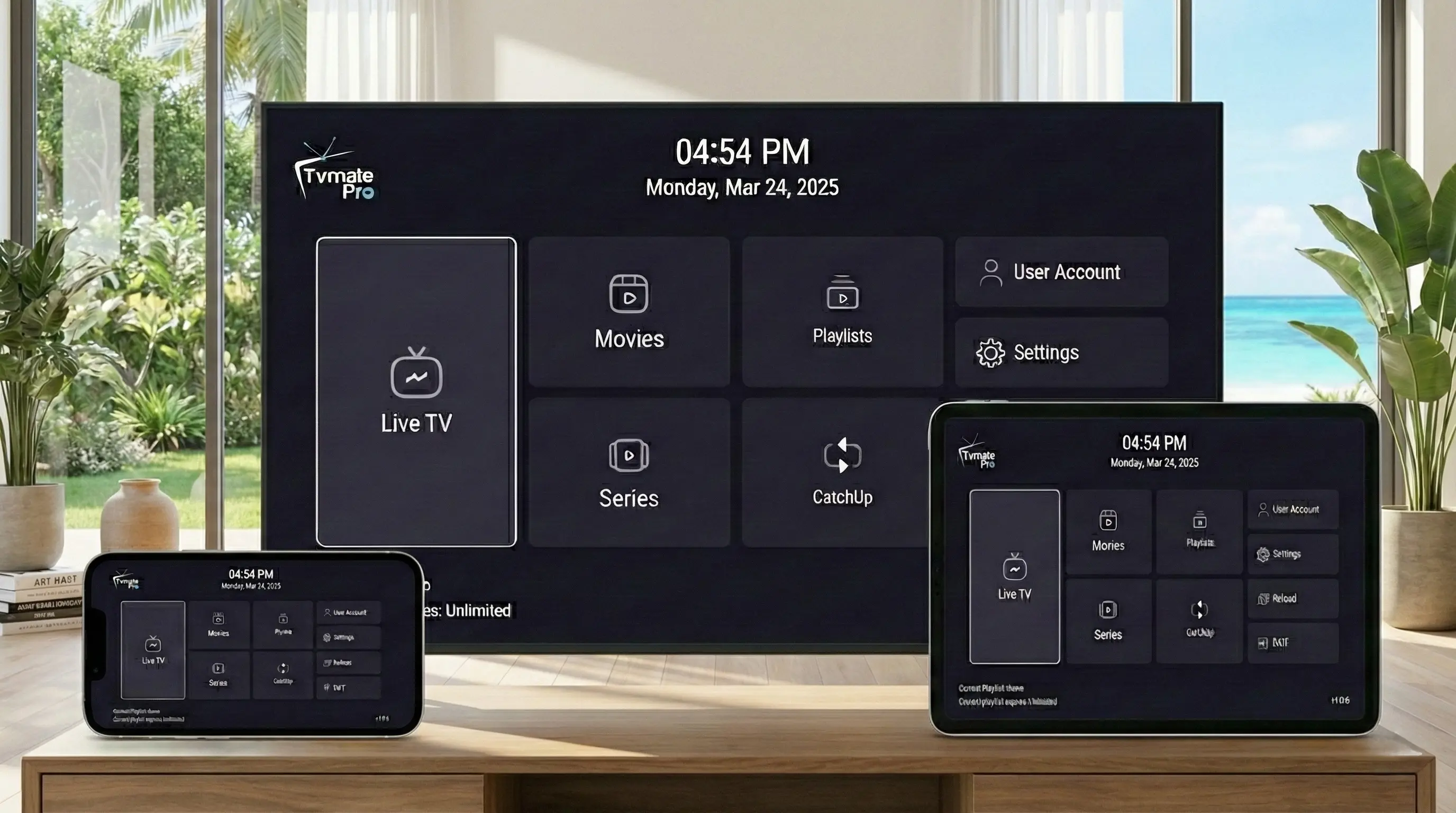
Google TV and Android TV devices (like Chromecast with Google TV, NVIDIA Shield, and Sony TVs) are among the best platforms for IPTV. They support high-quality apps directly from the Play Store, making the setup of TvMate Pro simpler than ever.
In this guide, we'll show you the fastest way to get up and running.
Important: App vs Service
Crucial Info: TvMate Pro is a media player only. It comes with zero content.
To access live TV, movies, and series, you need to connect an IPTV Subscription to the app. We provide the premium subscription service you need.
What You Need
- A Google TV or Android TV device (Chromecast, Shield, Mi Box, etc.).
- A Google Account logged in to access the Play Store.
- Your IPTV Credentials: (Username, Password, and URL sent to your email after purchase).
Method 1: Google Play Store (Recommended)
Unlike on Firestick, you don't need any special tricks for most Android TV devices.
- Go to the Apps tab on your home screen.
- Click Search for apps or use the Google Assistant voice button.
- Type or say "TvMate".
- Look for the official TvMate Pro app icon and click it.
(Or use this direct link if you're on a browser: Play Store Link) - Click Install.
- Once finished, click Open.
Method 2: Sideload (Alternative)
If for some reason you cannot find the app on the Play Store, you can use the "Downloader" method just like on Firestick.
- Install Downloader from the Play Store.
- Open it and enter the code: 2578076
- Follow the prompts to download and install the APK.
- Note: You might need to enable "Install Unknown Apps" in your device Security settings.
How to Activate Subscription
Now that the app is installed, let's fill it with content.
- Open the TvMate Pro app.
- Select Add Playlist.
- Choose Xtream Codes login method.
- Enter the details from your welcome email:
- Server Address: (Check your email)
- Username: (Case sensitive)
- Password: (Case sensitive)
- Click Next.
- Wait for the playlist to process. You will see a "Playlist Processed" message.
- Click Done.
🚀 You can now navigate to the TV Guide and start watching live channels immediately.
Troubleshooting
App crashes on startup
Go to Settings > Apps > TvMate Pro > Clear Cache. If that fails, uninstall and reinstall using Method 1.
Channels won't load
Ensure you have an active internet connection. Check that your subscription hasn't expired. Verify you typed the credentials exactly right (no spaces).
Need a subscription?
If you don't have login details, get them here: Get Subscription.
FAQ
Does this work on NVIDIA Shield?
Yes, the instructions are exactly the same as for Google TV/Android TV. The Shield is actually the best device for TvMate Pro.
Can I record shows?
Yes, TvMate Pro allows you to record live TV to local storage or a USB drive connected to your device.
Conclusion
Google TV provides an excellent, clean interface for TvMate Pro. With the app installed and your subscription active, you have everything you need for the ultimate viewing experience.